

Bluetooth technology has become an integral part of our daily lives, allowing us to connect and communicate wirelessly with a wide range of devices. It was first introduced in 1994 by Ericsson, and since then, it has evolved to become one of the most widely used wireless communication technologies in the world.
Bluetooth works by using radio waves to transmit data between devices over short distances. It operates on the 2.4 GHz frequency band and uses a technique called frequency hopping spread spectrum to minimise interference from other devices. This allows for reliable and secure communication between devices.
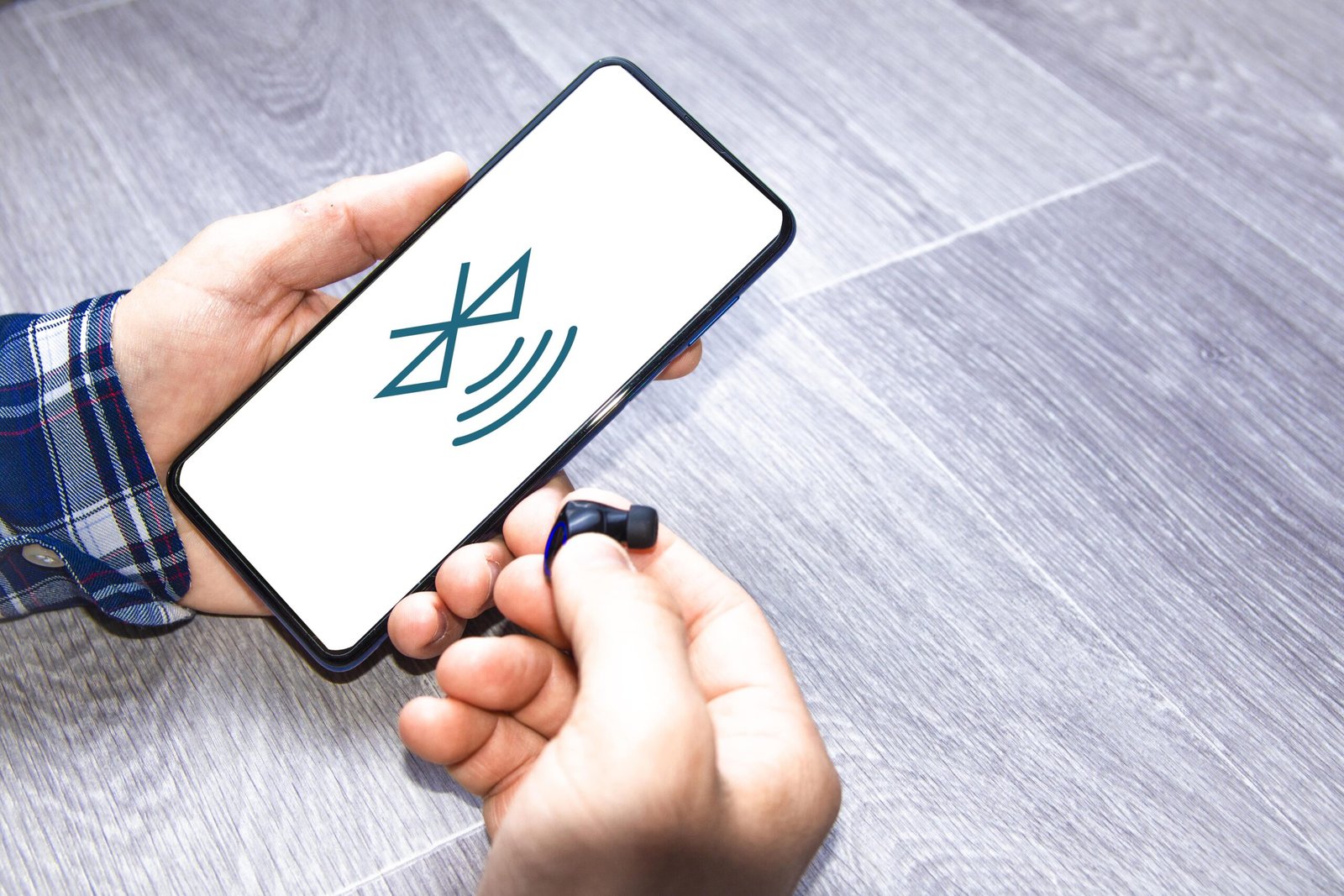
The importance of Bluetooth connectivity in modern devices cannot be overstated. It enables us to connect our smartphones, tablets, and computers to a wide range of peripherals such as headphones, speakers, keyboards, and mice. It also allows for seamless integration with smart home devices, fitness trackers, and other IoT (Internet of Things) devices.
Understanding the Limitations of Single Device Connection
While Bluetooth technology has made it easier than ever to connect our devices wirelessly, there are limitations to connecting only one device at a time. For example, if you are using Bluetooth headphones with your smartphone, you won’t be able to connect another device such as a smartwatch or a wireless keyboard simultaneously.
This limitation becomes even more apparent in situations where multiple devices need to be connected. For instance, if you are hosting a party and want to play music from your smartphone through multiple Bluetooth speakers placed around the house, you would need to disconnect and reconnect each speaker every time you want to switch between them.
Another example is when you are driving and need to connect your smartphone to both your car’s audio system and a hands-free device such as a Bluetooth headset. With single device connection, you would have to choose between the two or constantly switch back and forth.
Can iPhone Bluetooth connect to multiple devices
Yes, an iPhone can connect to multiple Bluetooth devices, but with some nuances:
Pairing vs. Connecting
Pairing: You can have multiple Bluetooth devices paired with your iPhone at the same time. This means they’re recognised and stored in your settings.
Connecting: However, you can only actively connect to one audio device at a time. This means only one device can play audio (music, calls, etc.)
Additional Points:
- iPhones can technically support up to 7 connected devices, but Apple recommends keeping it to 3-4 for optimal performance.
- With iOS 13 and later, “Audio Sharing” allows sharing audio (podcasts, songs, videos) from your iPhone to multiple compatible devices simultaneously. This doesn’t involve a direct connection to each device, but allows them to “piggyback” on the main connection.
- Some third-party apps or speaker systems might offer workarounds for playing audio on multiple speakers simultaneously, but these often have limitations.
So, while you can’t play audio on multiple devices directly, the “Audio Sharing” feature and certain app solutions offer some flexibility.
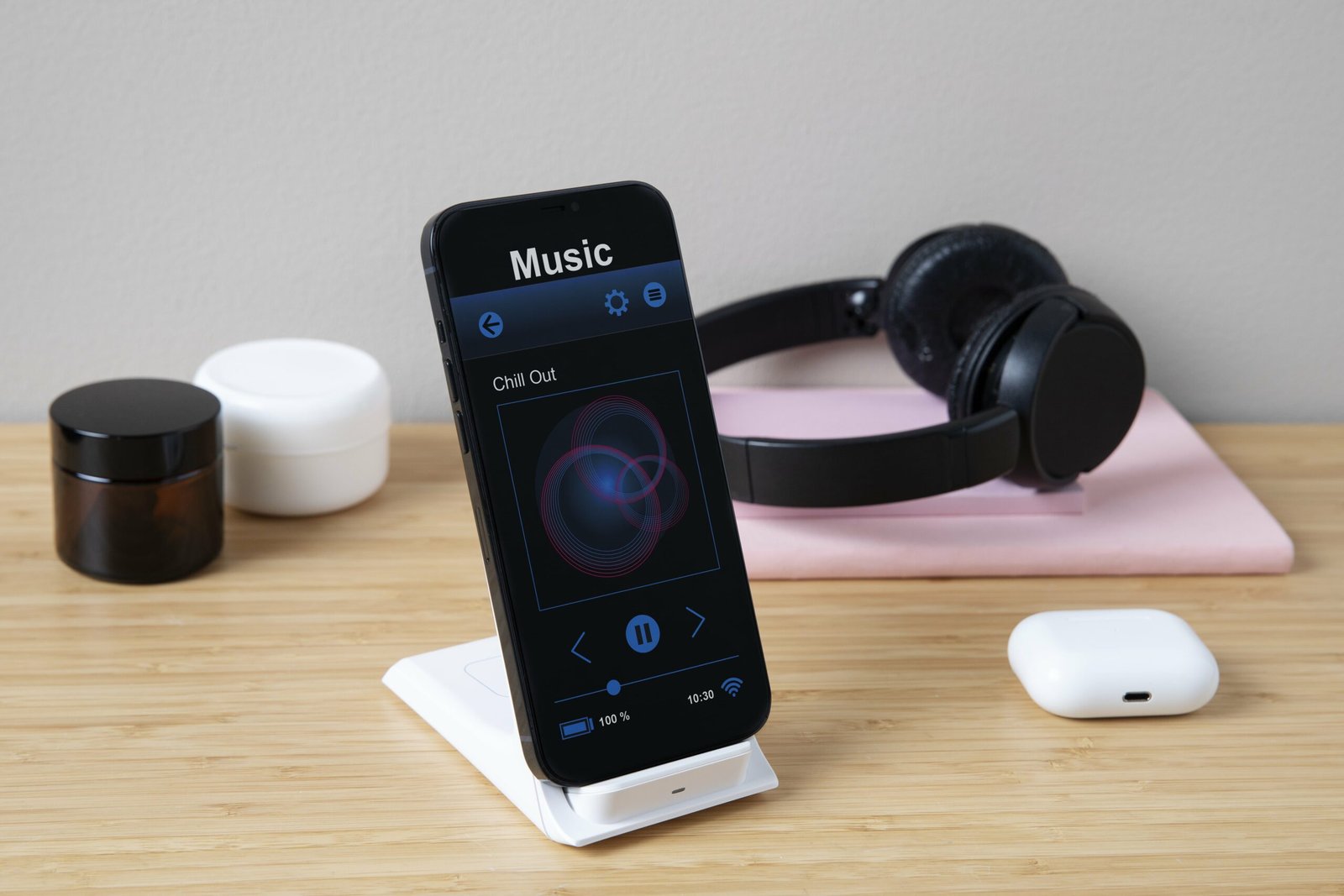
The Benefits of Connecting Your iPhone to Multiple Devices
Connecting your iPhone to multiple devices simultaneously can greatly enhance your productivity and convenience. One of the main advantages is the ability to multitask and switch between devices seamlessly. For example, you can listen to music on your Bluetooth headphones while typing on a wireless keyboard and checking notifications on your smartwatch, all without having to disconnect and reconnect each device.
Multiple device connection is also useful in scenarios where you need to share audio or video content with others. For instance, if you are watching a movie on your iPhone and want to share the audio with a group of friends, you can connect multiple Bluetooth speakers or headphones to your iPhone and enjoy a synchronised audio experience.
Furthermore, connecting multiple devices to your iPhone can also improve accessibility. For individuals with hearing impairments, connecting Bluetooth hearing aids or assistive listening devices can provide a personalised audio experience. Similarly, individuals with mobility impairments can benefit from connecting Bluetooth switches or other adaptive devices to control their iPhone.
Tips for Choosing Compatible Devices
When choosing devices to connect to your iPhone, there are several factors to consider. Firstly, make sure that the devices you want to connect are compatible with Bluetooth technology. Most modern devices support Bluetooth connectivity, but it’s always a good idea to check the specifications or consult the manufacturer’s website.
Secondly, consider the purpose and functionality of the devices you want to connect. For example, if you are looking for Bluetooth headphones, think about whether you need noise cancellation, long battery life, or specific features such as touch controls or voice assistants. Similarly, if you are looking for Bluetooth speakers, consider factors such as sound quality, portability, and waterproofing.
Compatibility issues can arise when connecting multiple devices to your iPhone. Some devices may have limitations on the number of simultaneous connections they can support or may not be able to connect with certain types of devices. It’s important to read the user manuals or contact the manufacturers for information on compatibility and limitations.
Step-by-Step Guide to Connecting Your iPhone to Multiple Devices
Connecting multiple devices to your iPhone is a straightforward process. Here is a step-by-step guide to help you get started:
1. Make sure that Bluetooth is enabled on your iPhone. You can do this by going to Settings > Bluetooth and toggling the switch to the on position.
2. Put the device you want to connect into pairing mode. This usually involves pressing and holding a button or a combination of buttons on the device until a light or indicator starts flashing.
3. On your iPhone, under the Bluetooth settings, you should see a list of available devices. Tap on the device you want to connect to.
4. Follow any on-screen prompts or enter any required passcodes or PINs to complete the pairing process.
5. Repeat steps 2-4 for each additional device you want to connect.
Once you have successfully connected multiple devices to your iPhone, you can easily switch between them by going to the Control Center and tapping on the Bluetooth icon. From there, you can select the device you want to use as the audio output or input.
Why Can’t I connect My iPhone Bluetooth To Multiple Devices?
While connecting multiple devices to your iPhone is generally a smooth process, there can be some common issues that you may encounter. Here are some troubleshooting tips for resolving these issues:
1. Make sure that Bluetooth is enabled on all devices and that they are within range of each other. Bluetooth has a limited range, typically around 30 feet, so if you are experiencing connection issues, try moving closer to the devices.
2. Restart both your iPhone and the devices you are trying to connect. Sometimes, a simple restart can resolve connectivity issues.
3. Check for software updates on your iPhone and the connected devices. Manufacturers often release updates that address compatibility and connectivity issues.
4. If you are experiencing interference from other devices, try turning off or moving away from them. Other wireless devices such as Wi-Fi routers, cordless phones, and microwave ovens can interfere with Bluetooth signals.
5. If you are still experiencing issues, try unpairing and re-pairing the devices. Go to the Bluetooth settings on your iPhone, tap on the device you want to unpair, and select “Forget This Device.” Then, follow the pairing process again.
How to Manage Multiple Connected Devices on Your iPhone
Managing multiple connected devices on your iPhone is essential for maintaining a seamless and organised experience. Here are some tips on how to effectively manage your connections:
1. Prioritise your connections: If you have multiple devices connected to your iPhone, you can prioritise which device takes precedence for audio output or input. Go to the Control Center, tap on the Bluetooth icon, and select the device you want to prioritise.
2. Rename your devices: By default, connected devices are identified by their model names or serial numbers. To make it easier to distinguish between devices, you can rename them. Go to the Bluetooth settings on your iPhone, tap on the “i” icon next to the device name, and enter a new name.
3. Disconnect unused devices: If you have devices that you rarely use or no longer need to connect, it’s a good idea to disconnect them to free up resources and reduce clutter. Go to the Bluetooth settings on your iPhone, tap on the “i” icon next to the device name, and select “Disconnect.”
4. Use device-specific apps: Some devices have their own companion apps that provide additional functionality and customisation options. For example, Bluetooth headphones may have an app that allows you to adjust equalizer settings or enable noise cancellation. Explore these apps to enhance your experience with connected devices.
Maximising Battery Life with Multiple Bluetooth Connections
Bluetooth connectivity can have an impact on battery life, especially when connecting multiple devices simultaneously. Here are some tips to help you conserve battery life:
1. Disable Bluetooth when not in use: If you are not actively using Bluetooth devices, it’s a good idea to turn off Bluetooth on your iPhone to conserve battery. You can do this by going to Settings > Bluetooth and toggling the switch to the off position.
2. Disconnect unused devices: As mentioned earlier, disconnecting devices that you are not using can help conserve battery life. This is because even when not actively transmitting data, connected devices still consume a small amount of power.
3. Adjust device settings: Some Bluetooth devices have power-saving features or settings that allow you to optimise battery life. For example, you can adjust the auto-off timer on Bluetooth headphones or reduce the brightness of LED indicators on speakers.
4. Keep devices charged: Make sure that your Bluetooth devices are fully charged before using them. Low battery levels can cause connectivity issues and may result in increased power consumption.
Advanced Settings for Bluetooth Connectivity
In addition to the basic settings for Bluetooth connectivity, there are also advanced settings that can further enhance your experience. Here are some examples:
1. Audio routing: By default, audio from your iPhone is routed to the last connected device. However, you can change this behavior by going to Settings > Bluetooth > Audio Routing and selecting an option such as “Automatic,” “Bluetooth Headphones,” or “iPhone Speaker.”
2. Dual audio: If your iPhone supports it, you can enable dual audio to simultaneously stream audio to two connected Bluetooth devices. This is useful when sharing audio with someone else or when using multiple speakers for a stereo effect. Go to Settings > Bluetooth and tap on the “i” icon next to the first device name. Then, toggle on the “Use Separate App Sound” option.
3. Accessibility options: The Accessibility settings on your iPhone include various options for customising Bluetooth connectivity based on your specific needs. For example, you can enable “Mono Audio” to combine the audio channels into a single channel for individuals with hearing impairments.
Exploring Third-Party Apps for Enhanced Bluetooth Functionality
While the built-in Bluetooth functionality on your iPhone is powerful, there are also third-party apps available that can enhance your Bluetooth experience. These apps provide additional features and customisation options that may not be available in the default settings. Here are some popular examples:
1. Bluetooth Auto Connect: This app allows you to automatically connect to specific Bluetooth devices when they are in range. It can be useful for devices that you frequently use, such as your car’s audio system or a smart speaker.
2. Bluetooth Volume Control: This app gives you more control over the volume levels of connected Bluetooth devices. It allows you to adjust the volume independently for each device and provides a widget for quick access.
3. Bluetooth File Transfer: This app enables you to transfer files between your iPhone and other Bluetooth-enabled devices. It supports various file types and allows for easy sharing of photos, videos, documents, and more.
Conclusion and Future of Bluetooth Connectivity
In conclusion, Bluetooth connectivity has revolutionised the way we interact with our devices. It allows us to connect wirelessly to a wide range of peripherals and IoT devices, enhancing our productivity, convenience, and accessibility.
While there are limitations to connecting only one device at a time, connecting multiple devices to your iPhone opens up a world of possibilities. It allows for multitasking, sharing audio or video content with others, and personalised accessibility options.
When choosing devices to connect to your iPhone, consider compatibility and functionality factors. Be aware of compatibility issues that may arise and consult user manuals or manufacturers for guidance.
Follow the step-by-step guide to connect multiple devices to your Apple iPhone and troubleshoot common connection issues if they arise. Manage your connections effectively by prioritising, renaming, and disconnecting devices as needed.
To maximise battery life, disable Bluetooth when not in use, disconnect unused devices, and adjust device settings. Explore advanced settings for Bluetooth connectivity and consider using third-party apps for enhanced functionality.
The future of Bluetooth technology looks promising, with advancements such as Bluetooth 5.0 and Bluetooth Low Energy (BLE) offering faster speeds, longer range, and improved power efficiency. As more devices become Bluetooth-enabled, we can expect even greater integration and connectivity in the years to come.
PK|2112080|2:30|CON
Phone Repair Brisbane · Near Coles Kiosk, 1/180 Fairfield Rd, Fairfield QLD 4103 · Phone 07 3073 1588 · Open Mon–Sat 10am–6pm · Walk-in service, no appointment needed · Cash, EFTPOS, Apple Pay, Google Pay, Afterpay & credit card accepted