

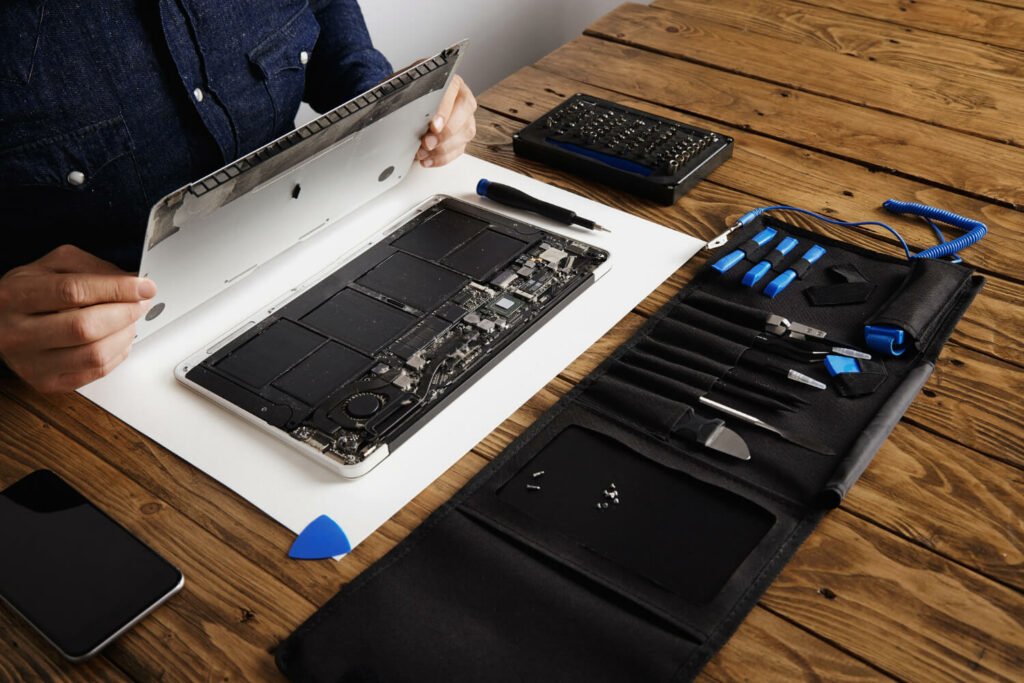
In today’s digital age, owning a MacBook has become a necessity for many individuals. Whether you use it for work, school, or personal use, a MacBook is an essential tool that helps us stay connected and productive. However, like any electronic device, MacBook are not immune to issues and malfunctions. That’s why it is important to have a basic understanding of how to troubleshoot common problems that may arise.
Knowing how to repair your own MacBook can save you time and money. Instead of waiting for days or even weeks for a professional MacBook repair service, you can take matters into your own hands and fix the basic issues yourself. Additionally, repairing your own MacBook gives you a sense of empowerment and independence. You no longer have to rely on others to solve your technical problems.
Before we dive into the troubleshooting techniques, let’s take a look at some of the common issues that MacBook users often encounter. MacBook Repair issues include the MacBook not turning on, slow performance, battery draining quickly, overheating, keyboard not working, trackpad or mouse not responding, Wi-Fi connectivity issues, audio and sound problems, and display and graphics issues. By familiarising ourselves with these problems, we can better understand how to address them effectively.
Key Takeaways
- Introduction to MacBook Repair: A guide to troubleshooting common issues
- Common MacBook Issues and Symptoms: Identifying battery, overheating, keyboard, trackpad, Wi-Fi, audio, and display problems
- Basic Troubleshooting Techniques for MacBook: Restarting, resetting SMC and PRAM, checking for updates, and running diagnostics
- How to Fix MacBook Battery Issues: Calibrating, replacing, and optimising battery usage
- Solving MacBook Overheating Problems: Cleaning fans and vents, adjusting settings, and using cooling pads
Common MacBook Issues and Symptoms
1. MacBook not turning on
One of the most frustrating issues is when your MacBook refuses to turn on. This could be due to a variety of reasons such as a dead battery, faulty power adapter, or hardware failure.
2. Slow performance
Over time, your MacBook may start to slow down due to various factors such as outdated software, insufficient storage space, or too many background processes running.
3. Battery draining quickly
If you find that your MacBook’s battery life is depleting rapidly even with minimal usage, it could be caused by software issues or a faulty battery.
4. Overheating
MacBook’s are designed to dissipate heat efficiently, but if you notice that your device is getting excessively hot, it could be due to dust accumulation in the fan and vents, or a malfunctioning cooling system.
5. Keyboard not working
A non-responsive keyboard can be a major hindrance to your productivity. This issue can be caused by software glitches, physical damage, or liquid spills.
6. Trackpad or mouse not responding
If your trackpad or external mouse is not working properly, it could be due to software issues, driver problems, or physical damage.
7. Wi-Fi connectivity issues
Unstable or slow Wi-Fi connections can be frustrating, especially when you rely on the internet for work or entertainment. This problem can be caused by router issues, software conflicts, or hardware problems.
8. Audio and sound problems
If you’re experiencing distorted sound, no sound at all, or issues with external audio devices, it could be due to software settings, outdated drivers, or faulty hardware.
9. Display and graphics issues
Problems with the display such as flickering screens, distorted images, or no display at all can be caused by software glitches, outdated drivers, or hardware failures.
Basic Troubleshooting Techniques for MacBook
1. Restarting your MacBook: Sometimes a simple restart can resolve minor software glitches and refresh system processes.
2. Checking for software updates: Keeping your MacBook’s operating system and applications up to date can fix bugs and improve performance.
3. Running a virus scan: Malware and viruses can cause various issues on your MacBook. Running a thorough virus scan can help identify and remove any malicious software.
4. Clearing cache and cookies: Over time, cached files and cookies can accumulate and slow down your MacBook. Clearing them regularly can help improve performance.
5. Resetting SMC and PRAM: Resetting the System Management Controller (SMC) and Parameter Random Access Memory (PRAM) can fix certain hardware and software issues.
How to Fix MacBook Battery Issues
| Issue | Cause | Solution |
|---|---|---|
| Battery draining too fast | Background apps, brightness, outdated software | Close background apps, reduce brightness, update software |
| Battery not charging | Charger issue, software issue, battery issue | Check charger, reset SMC, replace battery |
| Battery percentage not accurate | Software issue, battery issue | Calibrate battery, update software, replace battery |
| Battery swollen | Age, overcharging, overheating | Replace battery immediately |
1. Checking battery health: You can use the built-in battery health tool to determine the condition of your MacBook’s battery. If it is degraded, it may need to be replaced.
2. Calibrating the battery: Calibrating the battery can help recalibrate the battery’s power management system and improve its accuracy.
3. Adjusting energy saver settings: Optimising your energy saver settings can help prolong your MacBook’s battery life.
4. Replacing the battery: If all else fails, replacing the battery may be necessary. This is best done by a professional or an authorised service provider.
Solving MacBook Overheating Problems
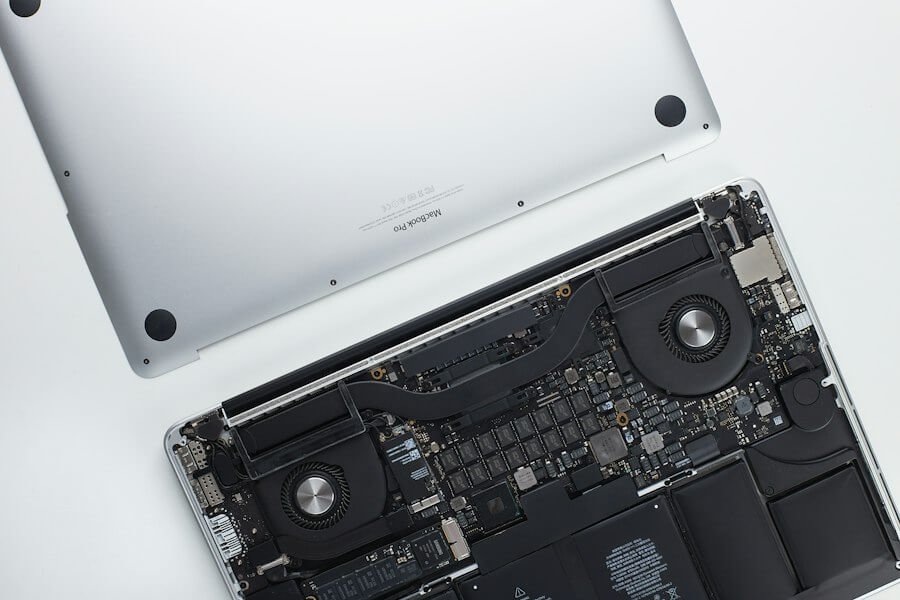
1. Cleaning the fan and vents: Dust accumulation in the fan and vents can restrict airflow and cause overheating. Regularly cleaning them can help prevent this issue.
2. Checking for software updates: Updating your MacBook’s software can include performance improvements and bug fixes that may address overheating issues.
3. Adjusting energy saver settings: Modifying your energy saver settings to reduce processor usage can help prevent overheating.
4. Using a cooling pad: Investing in a cooling pad can provide additional airflow and help keep your MacBook cool during intensive tasks.
Diagnosing and Repairing MacBook Keyboard Problems
1. Cleaning the keyboard: Dust, debris, or liquid spills can cause keys to become unresponsive. Cleaning the keyboard thoroughly can often resolve this issue.
2. Checking for software updates: Updating your MacBook’s software can include keyboard-related fixes that may address unresponsiveness.
3. Resetting the keyboard: Resetting the keyboard settings can help resolve software-related issues that may be causing keyboard problems.
4. Replacing the keyboard: If the keyboard is physically damaged or cleaning does not solve the issue, replacing the keyboard may be necessary.
Fixing MacBook Trackpad and Mouse Issues
1. Cleaning the trackpad or mouse: Similar to the keyboard, dust, debris, or liquid spills can cause trackpad or mouse issues. Cleaning them carefully can often resolve the problem.
2. Checking for software updates: Updating your MacBook’s software can include trackpad or mouse-related fixes that may address unresponsiveness.
3. Resetting the trackpad or mouse: Resetting the trackpad or mouse settings can help resolve software-related issues that may be causing problems.
4. Replacing the trackpad or mouse: If cleaning and resetting do not solve the issue, replacing the trackpad or mouse may be necessary.
Resolving MacBook Wi-Fi Connectivity Problems
1. Restarting your router: Sometimes, Wi-Fi connectivity issues can be resolved by simply restarting your router.
2. Checking for software updates: Updating your MacBook’s software can include Wi-Fi-related fixes that may address connectivity problems.
3. Resetting network settings: Resetting your network settings can help resolve software conflicts that may be causing Wi-Fi connectivity issues.
4. Replacing the Wi-Fi card: If all else fails, replacing the Wi-Fi card may be necessary. This should be done by a professional or an authorised service provider.
Troubleshooting MacBook Audio and Sound Issues
1. Checking volume and mute settings: Ensure that your volume is not muted and that it is set to an appropriate level.
2. Checking for software updates: Updating your MacBook’s software can include audio-related fixes that may address sound problems.
3. Resetting the audio settings: Resetting your audio settings can help resolve software conflicts that may be causing sound issues.
4. Replacing the speakers: If sound problems persist, it may be necessary to replace the speakers. This should be done by a professional or an authorised service provider.
How to Repair MacBook Display and Graphics Problems
1. Checking for software updates: Updating your MacBook’s software can include display and graphics-related fixes that may address issues.
2. Adjusting display settings: Tweaking your display settings, such as resolution and refresh rate, can help resolve certain display problems.
3. Resetting the PRAM: Resetting the PRAM can help resolve software conflicts that may be causing display and graphics issues.
4. Replacing the display or graphics card: If all else fails, it may be necessary to replace the display or graphics card. This should be done by a professional or an authorised service provider.
Finding Professional MacBook Repair Services
1. Researching reputable repair services: Take the time to research and find reputable repair services that specialise in MacBook repairs.
2. Comparing prices and services: Compare prices and services offered by different repair services to ensure you are getting the best value for your money.
3. Checking for warranties and guarantees: Look for repair services that offer warranties or guarantees on their work to ensure peace of mind.
4. Reading reviews and testimonials: Read reviews and testimonials from previous customers to get an idea of the quality of service provided by the repair service.
In conclusion, being able to troubleshoot and repair common issues with your MacBook can save you time, money, and frustration. By familiarising yourself with the common issues such as MacBook not turning on, slow performance, battery draining quickly, overheating, keyboard not working, trackpad or mouse not responding, Wi-Fi connectivity issues, audio and sound problems, and display and graphics issues, you can take proactive steps to address these problems effectively.
Basic troubleshooting techniques such as restarting your MacBook, checking for software updates, running a virus scan, clearing cache and cookies, and resetting SMC and PRAM can often resolve many issues. However, for more complex problems or hardware-related issues, it is advisable to seek professional repair services.
When looking for professional repair services, it is important to research reputable providers, compare prices and services, check for warranties and guarantees, and read reviews and testimonials. By following these steps, you can ensure that your MacBook is in good hands and will be repaired by experienced professionals.
In conclusion, having the knowledge and skills to troubleshoot and repair your own MacBook can be empowering and cost-effective. However, it is also important to know when to seek professional help. By combining your own troubleshooting efforts with the expertise of professional repair services, you can ensure that your MacBook stays in optimal condition for years to come.
PK|10082080|1:30|CON