

What to Do If Your Phone’s Charger Isn’t Working After a Software Update? It can be annoying if the charger on your phone stops functioning after a software update. Although software upgrades frequently result in fixes and enhancements, they can occasionally introduce unanticipated problems, such as disruptions to charging capabilities. Bugs, charger incompatibilities, or system settings changes that impact charging may be introduced by the update. In certain instances, the new software can interfere with charging speed or make the phone not identify the charging device. Although they are uncommon, these issues may typically be fixed with a few troubleshooting techniques. It’s critical to take care of charging problems as soon as possible to prevent other issues and guarantee your gadget keeps working.
Resolving charging problems following a phone update is essential to guaranteeing your device operates as intended. Your phone can rapidly lose battery without a functional charger, making it challenging to operate crucial functions or stay connected. Your regular routine may also be disturbed by charging issues, particularly for those who depend on their phones for communication, pleasure, or business. Many users experience frequent annoyances following a software update, such as slow charging speeds, no charge at all, or their phone not detecting the charger. These problems can cause delays and inconvenience, and they can be especially unpleasant when you need your gadget the most. Quickly fixing charging issues reduces interruptions to your daily routine and preserves your phone’s dependability and usability.
Why Does This Happen?
Problems Associated with Software
A software update may change the way the phone communicates with the charging device. Slow or nonexistent charging may come from the device misinterpreting the charger’s signal due to modifications made to the power management system or charging algorithms. Additionally, the new software may change power flow control settings, which could result in charging failures or disruptions.
Compatibility Issues
Some older charging accessories may not work properly following a software upgrade. The new software may not be completely compatible with chargers, cords, or docks made for earlier iterations of the phone’s operating system, which could result in charging issues including sporadic connections or no charge at all
Bug-Related Issues
Updates may introduce software bugs that affect the device’s hardware functionality, such as charging. These glitches could interfere with the phone’s ability to communicate with the charger, which would hinder the transfer of electricity. Users may encounter annoying charging issues in the interim, although in certain situations, the problem might be fixed with additional updates.
Step-by-Step Troubleshooting Guide for Charging Issues After a Software Update
Restart Your Phone
One of the easiest and fastest ways to fix software-related issues that might have arisen following an update is to restart your phone. Rebooting the phone can assist remove temporary files and update the system, which may be the source of the charging problem. To restart your phone, slide it off while holding down the power button, wait 30 seconds, and then turn it back on.
Examine the Charging Port
A typical cause of charging issues is dirt or debris in the charging port. The phone may act differently after a software update, becoming more susceptible to obstructions in the charging port. Examine the charging port closely for any obvious obstruction, such as lint or dirt. To clean the port, use a tiny brush or a can of compressed air. You might need to get the port repaired by a professional if it is damaged because it could potentially affect charging.
Try a Different Cable and Adapter
Another possible reason for charging problems is faulty cables and adapters. The phone may occasionally fail to detect a damaged cable or adapter following a software upgrade. To rule out hardware problems, test the phone using a different suitable charging cable and adapter. Make sure that the adapter and cable support the charging speed of your phone and are in excellent operating order. You might need to swap out the damaged cable if the phone charges using a different one.
Check for Software Updates
Newer versions may fix flaws in the software that affect charging functionality. It’s crucial to see whether there are any uninstalled software upgrades on your phone that might resolve known charging problems from previous iterations. Locate the “Software Update” option in the settings of your phone. Install any available updates, then verify if the problem has been fixed. Updating the software on your phone also guarantees that it functions properly and is shielded against security flaws.
Reset Settings
Incorrect settings following a software update might occasionally result in problems with charging. These problems can be resolved by clearing the settings on your phone without erasing any of your personal information. To reset settings on an Android phone, navigate to Settings > System > Reset Options. You can select Settings > General > Reset > Reset All Settings on iPhones. This procedure returns your phone’s settings to their initial defaults and may resolve charging-related problems brought on by misconfigured or conflicting software.
Factory Reset (as a Last Resort)
Since a factory reset would remove all data from your device, it should only be used as a last resort to resolve charging problems. Nonetheless, it’s a useful method for getting rid of recurring errors or conflicts in the system that might be the source of the issue. Make sure to backup all of your crucial data, including contacts, messages, and images, before doing a factory reset. To erase all data (factory reset) on Android, select Settings > System > Reset Options; on an iPhone, select Settings > General > Reset > Erase All Content and Settings. Check to see whether your charging problem has been fixed after the reset is finished.
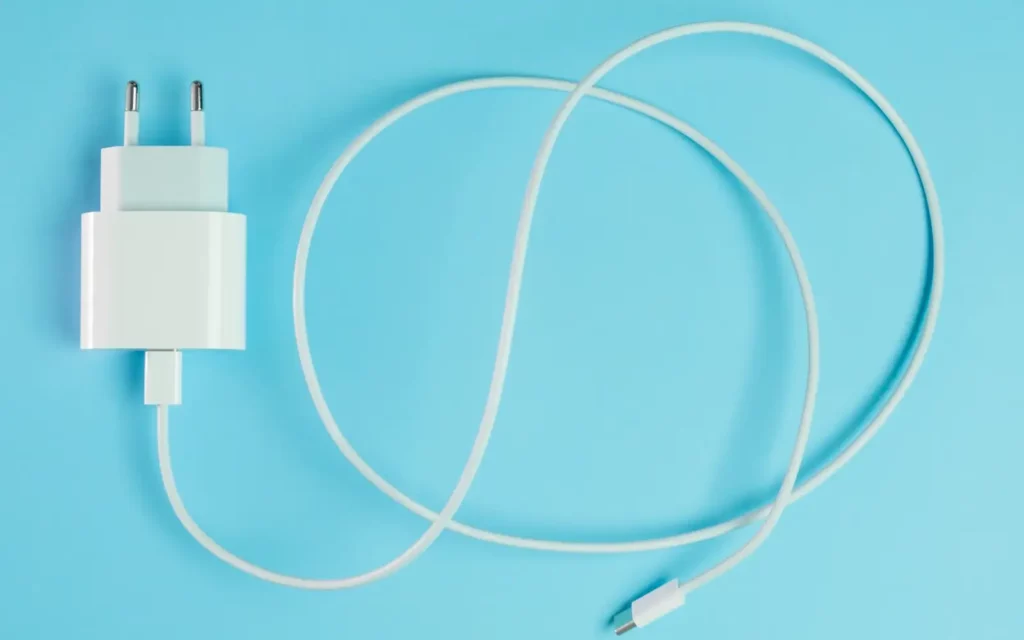
When to Seek Professional Help for Charging Issues
Persistent Charging Issues
There may be a more significant hardware issue if the charging problem continues after you’ve tried the troubleshooting methods, which include rebooting your phone, verifying the charging port, trying with other cords, and making sure your software is up to current. For instance, professional assistance can be necessary if the charging port is physically broken or if there is a problem with the motherboard or battery. If the phone charges sporadically or not at all after trying various troubleshooting techniques, that is another indication of a hardware problem.
Professional Assistance
It’s time to get professional assistance if your gadget is still covered under warranty or if you’ve tried every do-it-yourself troubleshooting method without result. Correct diagnosis of the issue can be ensured by going to a repair shop or getting in touch with customer service. Expert experts possess the equipment and know-how to find and fix problems that could be hard to spot on your own, like malfunctioning charging circuits or broken internal components.
Services to Take Into Account
For consumers in need of professional support, iPhone Repair Melbourne and iPhone Repair Brisbane offer dependable, timely fixes for a variety of phone charging problems. Professional technicians can assist in restoring your phone to full operation, whether it requires software debugging, battery repair, or charging port replacement. These repair services provide reasonably priced solutions to swiftly and effectively fix your phone if it is no longer covered under warranty, guaranteeing less downtime.
Also Read: Why is My Phone Charger Buzzing?
How to Prevent Charging Issues After Future Updates
Frequent Software Maintenance
It’s critical to perform routine software maintenance on your phone to prevent charging problems with upcoming software updates. Your phone will function at its best if you keep it updated with the most recent security updates and system patches. Updates frequently fix known issues, boost functionality, and improve compatibility with chargers and other equipment. Software-related charging issues can be avoided by routinely scanning for and applying updates.
Backup Before Updating
Always make a backup of your phone before executing any significant upgrades to prevent losing crucial data in the event that an issue arises. You can restore your device in the event that the update causes any problems, such charging troubles or data loss, by backing up your data to a local computer or to cloud services like Google Drive (for Android) or iCloud (for iPhone). In the event that something goes wrong, a backup lowers the chance of frustration and acts as a safety net.
Use Official Accessories
Using authorised, high-quality charging accessories is one of the easiest yet most efficient ways to avoid charging problems following an update. Compatibility problems may arise from using unbranded or third-party chargers and cables, particularly following a software upgrade. Stable charging and fewer software conflicts are guaranteed when you use official chargers and cords that adhere to the manufacturer’s specifications. Purchasing approved accessories reduces the possibility of charging issues and guarantees your device’s long-term dependability and safety.
Frequently Asked Questions
Why Did My Charger Stop Working After a Software Update?
Your charger may cease working after a software update for a number of reasons. The update may cause problems or change configurations that impact charging. The updated software may occasionally no longer work with older chargers, cords, or accessories. Additionally, the update may cause delayed or nonexistent charging by interfering with the connection between your phone and charger. Try basic troubleshooting techniques like restarting your phone, inspecting the charging cable, or making sure your software is up to date to fix these problems. It is advised to seek professional assistance if the issue continues. Get in touch with iPhone Repair Brisbane so that our staff of professionals can help you fix the problem..
How Do I Know if My Charging Problem Is Caused by Software?
If the charging port and cord appear to be in good condition, the problem may be software-related. Look for the following symptoms: the charging icon is not visible, the battery percentage doesn’t rise even when plugged in, or your phone charges slowly or not at all following a recent software update. Sometimes the issue can be resolved by restarting your device. Additionally, to address issues, try charging in Safe Mode (for Android) or look for software upgrades. A factory reset could be helpful if the problem continues, but make a backup of your data beforehand. Software-related problems frequently manifest as irregular pricing patterns.
Can Using Unofficial Chargers Cause Charging Issues After an Update
Yes, following a software update, utilising unapproved chargers may result in charging problems. The revised system on your phone may not be completely compatible with these chargers, which could result in issues like slow or nonexistent charging. Official cords and chargers are made to integrate with the software on your phone, guaranteeing steady charging and fewer problems. Unauthorised chargers may occasionally result in software incompatibilities or harm the charging port. Using the charger that came with your phone or an authorised replacement from the manufacturer is the best way to prevent issues. This will safeguard your phone and guarantee correct charging.