

The MacBook is a popular laptop choice for many individuals due to its sleek design, powerful performance, and user-friendly interface. However, like any electronic device, it is not immune to issues. One common problem that MacBook users may encounter is the keyboard not working properly or at all. This can be frustrating and hinder productivity, making it essential to address the issue promptly.
Key Takeaways
- The MacBook keyboard not working issue can be caused by various factors such as software updates, driver issues, and physical damage.
- Troubleshooting steps for the MacBook keyboard not working issue include resetting the keyboard, cleaning it, checking for software updates, and reinstalling the keyboard driver.
- If the issue persists, using an external keyboard or replacing the MacBook keyboard may be necessary.
- To prevent the MacBook keyboard not working issue, it is recommended to keep the keyboard clean and avoid spilling liquids on it.
- Overall, fixing the MacBook keyboard not working issue requires patience and careful attention to detail, but with the right steps, it can be resolved effectively.
Common Causes of The MacBook Keyboard Not Working Issue
Dust and Debris Accumulation
Over time, dust, dirt, and other debris can accumulate beneath the keys of your MacBook’s keyboard. These particles can interfere with the mechanism of the keys, causing them to become sticky or unresponsive.
Software Issues
Outdated software or incompatible applications can sometimes cause conflicts that affect the proper functioning of your MacBook’s keyboard. Software updates or troubleshooting steps may be necessary to resolve these issues.
Physical Damage
Accidental drops, bumps, or spills can result in physical damage to your MacBook’s keyboard. This damage may affect the internal components responsible for key responsiveness, leading to issues such as stuck or non-working keys.
Liquid Damage
Spills or exposure to liquid poses a significant risk to the functionality of your MacBook’s keyboard. When liquid seeps into the keyboard, it can cause short circuits or corrosion, resulting in keys that are unresponsive or malfunctioning.
Hardware Failure
In some cases, hardware failures within the keyboard itself or other related components can lead to keyboard issues on your MacBook. These failures may require professional diagnosis and repair to resolve.
Battery Swelling
In rare instances, a swollen battery inside the MacBook can exert pressure on the keyboard from below, causing keys to become stuck or unresponsive. This issue typically requires immediate attention from an authorised service provider.
Keyboard Firmware Issues
The firmware responsible for controlling the keyboard’s functionality may encounter errors or glitches, resulting in keyboard malfunctions. Firmware updates or reprogramming may be necessary to address these issues.
Connector Problems
Loose or damaged connectors between the keyboard and the MacBook’s logic board can prevent proper communication, leading to keyboard issues. Inspecting and possibly replacing these connectors may be required to resolve the problem.
Electrical Interference
External factors such as electromagnetic interference from nearby electronic devices can sometimes disrupt the signals between the keyboard and the MacBook, causing intermittent keyboard problems.
System Settings Misconfiguration
Incorrect settings or preferences related to keyboard input may cause unexpected behavior or non-responsiveness. Resetting or adjusting these settings in the System Preferences may help resolve the issue.
Operating System Corruption
Corruption within the macOS operating system files or system directories can lead to various hardware malfunctions, including keyboard issues. Repairing or reinstalling the operating system may be necessary to fix the problem.

User Error
Sometimes, user actions such as accidental key bindings, accessibility settings modifications, or software installations can inadvertently cause keyboard problems. Reverting recent changes or adjustments may help resolve the issue.
Temperature and Environmental Factors
Extreme temperatures or exposure to harsh environmental conditions can affect the performance of electronic components, including the keyboard. Avoiding exposure to such conditions may prevent potential issues.
Manufacturing Defects
In rare cases, manufacturing defects or quality control issues with the MacBook’s keyboard or related components may manifest as keyboard malfunctions. Warranty coverage or replacement options may apply in such situations.
Aging Hardware
As your MacBook ages, wear and tear on the keyboard components may gradually degrade its performance. Regular maintenance and occasional replacements may be necessary to ensure continued functionality.
Understanding these common causes can help you troubleshoot and address issues with your MacBook’s keyboard effectively. If you’re unable to resolve the problem on your own, seeking assistance from Apple Support or an authorised service provider is recommended.
Troubleshooting Steps For The MacBook Keyboard Not Working Issue
When faced with a non-working MacBook Keyboard there are several troubleshooting steps you can take before seeking professional help:
1) Restarting your MacBook: Sometimes simply restarting your computer will resolve minor software glitches causing unresponsiveness in your Keyboard.
2) Checking for updates: Ensure that you have installed all available system updates as they often include bug fixes and improvements.
3) Running diagnostics: Apple provides built-in diagnostic tools that allow you to identify hardware issues on your Macbook.
4) Safe mode boot: Booting into safe mode helps isolate software-related problems by disabling unnecessary extensions and login items.
5) Resetting SMC (System Management Controller) and PRAM (Parameter Random Access Memory): These resets can help resolve various hardware and software issues, including keyboard problems.
How To Reset The MacBook Keyboard
| Step | Description |
| Step 1 | Shut down your MacBook completely. |
| Step 2 | Press and hold the Shift + Control + Option keys on the left side of the keyboard and the Power button at the same time. |
| Step 3 | Release all the keys and turn on your MacBook. |
| Step 4 | Your MacBook keyboard should now be reset. |
| Metric 1 | Number of times the keyboard has been reset. |
| Metric 2 | Number of users who have reset their MacBook keyboard. |
| Metric 3 | Average time it takes to reset the MacBook keyboard. |
If you have tried the troubleshooting steps mentioned above and your MacBook keyboard is still not working, you may need to reset it. Here’s a step-by-step guide on how to do it:
1) Shut down your MacBook completely.
2) Press and hold the Shift + Control + Option keys on the left side of your keyboard.
3) While holding these keys, press and hold the power button for about 10 seconds.
4) Release all keys simultaneously.
5) Turn on your MacBook as usual.
How To Clean The MacBook Keyboard
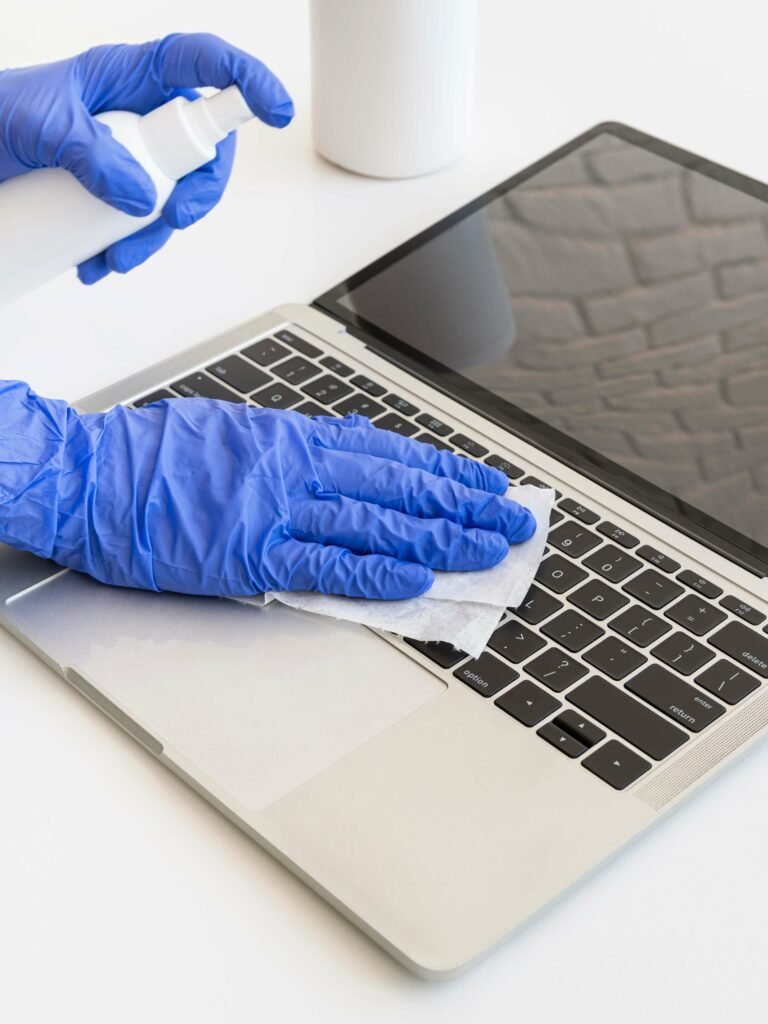
Dust and debris accumulation can cause issues with your MacBook’s keyboard. Cleaning it regularly can help maintain its functionality. Here’s a step-by-step guide on how to clean your MacBook’s keyboard:
1) Shut down your MacBook completely.
2) Use compressed air or a soft brush to remove loose debris from between the keys.
3) Dampen a lint-free cloth with water or isopropyl alcohol (70% concentration).
4) Gently wipe each key in a circular motion, being careful not to apply excessive pressure or get liquid into the device.
5) Allow the keyboard to dry completely before turning on your MacBook.
How To Check For Software Updates On The MacBook
Outdated software can cause conflicts that affect various components of your Macbook, including its keyboard. Checking for updates regularly is essential for maintaining optimal performance.

Here’s a step-by-step guide on how to check for software updates:
1) Click on the Apple menu in the top-left corner of your screen.
2) Select “System Preferences” from the drop-down menu.
3) In System Preferences, click “Software Update.”
4) Your Macbook will automatically check for available updates; if any are found, click “Update Now” to install them.
5) Follow the on-screen instructions to complete the update process.
How To Reinstall The Keyboard Driver on The MacBook
If your MacBook’s keyboard is still not working after trying other troubleshooting steps, reinstalling the keyboard driver may help resolve any software-related issues. Here’s a step-by-step guide on how to do it:
1) Shut down your MacBook completely.
2) Press and hold the power button until you see the startup options window.
3) Select “Reinstall macOS” or “Reinstall OS X,” depending on your operating system version.
4) Follow the on-screen instructions to complete the reinstallation process.
How To Fix The MacBook Keyboard Not Working Issue With an External Keyboard
If all else fails, using an external keyboard can be a temporary solution while you address or repair your MacBook’s built-in keyboard. Here’s a step-by-step guide on how to use an external keyboard with your Macbook:
1) Connect your external USB or Bluetooth-enabled keyboard to your Macbook.
2) Your Macbook should automatically recognise and configure it for use.
3) If necessary, adjust any settings specific to your external keyboard in System Preferences > Keyboard.

How To Replace The MacBook Keyboard
In some cases, physical damage or extensive wear and tear may require replacing your MacBook’s built-in keyboard entirely. While this task is best left for professionals, here is a general overview of what you can expect during a replacement:
1) Back up all important data from your Macbook before proceeding with any repairs.
2) Disconnect all cables and peripherals from your Macbook and power it off completely.
3) Remove screws securing the bottom case of your Macbook using appropriate tools (consult official Apple documentation for specific models).
4) Carefully disconnect ribbon cables connecting the old keyboard assembly to other components of your Macbook.
5) Remove screws securing the old keypad and replace it with a new one.
6) Reassemble your Macbook by following the steps in reverse order.
Tips To Prevent The MacBook Keyboard Not Working Issue
Prevention is always better than cure when it comes to maintaining your MacBook’s keyboard functionality. Here are some tips to help you avoid encountering this issue:
1) Regular cleaning and maintenance: Clean your MacBook’s keyboard regularly using compressed air or a soft brush to remove dust and debris.
2) Avoiding spills and physical damage: Be cautious when eating or drinking near your MacBook, as spills can cause irreparable damage. Additionally, handle your device with care to prevent accidental drops or impacts.
3) Keeping software up-to-date: Regularly check for software updates on your Macbook and install them promptly. These updates often include bug fixes that can improve overall system performance.
Conclusion and final thoughts on fixing the MacBook keyboard not working
In conclusion, a non-working MacBook keyboard can be frustrating but is not an insurmountable problem. By following the troubleshooting steps outlined above, you can often resolve the issue yourself without needing professional assistance.
Remember to restart your Macbook, check for updates regularly, run diagnostics if necessary, boot into safe mode if needed, and reset SMC/PRAM as appropriate.
If these steps fail to fix the problem, consider resetting or cleaning the keyboard itself using our step-by-step guides provided earlier in this article.
Ultimately, prevention is key; regular cleaning and maintenance of your MacBook’s keyboard will help minimise issues in the future. Additionally, taking precautions such as avoiding spills and keeping software up-to-date will go a long way in ensuring optimal performance from both hardware and software components of your device.
By addressing any issues promptly and implementing preventive measures moving forward, you can enjoy uninterrupted productivity on your beloved Apple MacBook for years to come.
If the above issue still persists and you’re not being able to fix the MacBook keyboard not working issue, you can come to PRB for further assistance. Our experienced repair technicians will examine your issue and fix it promptly.
FAQs
What is the MacBook keyboard not working issue?
The MacBook keyboard not working issue refers to a situation where the keyboard of a MacBook laptop fails to respond or function properly.
What are the possible causes of the MacBook keyboard not working issue?
The possible causes of the MacBook keyboard not working issue include software glitches, physical damage to the keyboard, outdated or incompatible software, and hardware issues.
How can I fix the MacBook keyboard not working issue?
You can fix the MacBook keyboard not working issue by restarting your MacBook, checking for software updates, resetting the SMC and PRAM, cleaning the keyboard, and seeking professional help if necessary.
What is SMC and PRAM?
SMC stands for System Management Controller, which is responsible for managing various hardware components on a MacBook. PRAM stands for Parameter Random Access Memory, which stores various settings and preferences on a MacBook.
How do I reset the SMC and PRAM?
To reset the SMC, shut down your MacBook, press and hold the Shift + Control + Option keys, and then press the power button. Release all keys and turn on your MacBook. To reset the PRAM, shut down your MacBook, press and hold the Command + Option + P + R keys, and then turn on your MacBook.
What should I do if the MacBook keyboard’s not working issue persists?
If the MacBook keyboard not working issue persists, you should seek professional help from an authorised Apple service provider or an Apple store. They can diagnose and fix the issue for you.
PK|10102080|1:30|CON